Step-by-Step Guide to Setting Up Your Tradeshift Account
World Courier provides seamless access to Tradeshift services through a secure login.
1. Overview
2. Before You Begin: Activate Your Account
- Step 1: Company Information
- Step 2: Personal Information
- Step 3: Verify Your Email
- Step 4: Set a Password
- Step 5: Complete Your Company Profile
4. App Activation (Quyntess Applications)
5. FAQ's
OVERVIEW
This article offers a detailed overview of the Tradeshift onboarding process, guiding you from Account Activation through to the completion of your Company Profile.
If you are in the process of setting up a new account, this step-by-step guide will help you fulfill all platform requirements prior to submitting your first invoice.
What you will achieve:
-
Activate your Tradeshift Account
-
Configure your Profile and Company Details
-
Gain a clear understanding of the essential requirements for successful invoicing
Let's begin by preparing your account for use.
PRELIMINARY STEP: ACCOUNT ACTIVATION
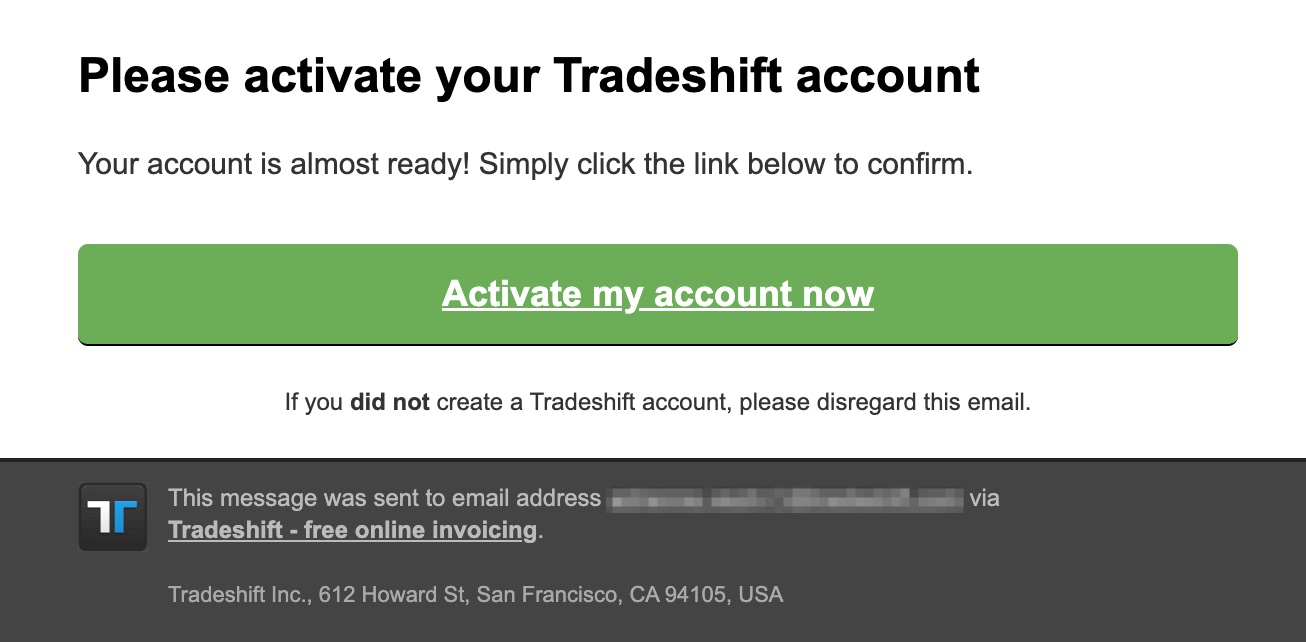
Prior to setting up your account, please activate it by following the instructions in the invitation email sent by Tradeshift.
- 1. Once notified by World Courier, recipients should expect an email from supplierinvitation@tradeshift.com.
- 2. To begin the setup process, click the "Activate Your Account" button provided in the email.
Note:
If you do not receive the email:
- Check your spam or junk folder
- Contact your IT team to ensure that emails from the tradeshift.com domain are whitelisted
- If you are still having issues, please reach out to Tradeshift support
 Important:
Once you click the activation link, please complete the entire registration process without interruption. Closing the window or attempting to resume later may result in issues. If this occurs, contact Tradeshift Support to request a new activation link.
Important:
Agents must not create a Tradeshift account manually. Always use the activation link provided by World Courier. Manually creating an account may bypass essential configurations and lead to delays in document submission.
BEGIN ACCOUNT CONFIGURATION
After activating your account, please complete the steps below to finalize your profile setup and gain full access to Tradeshift’s features:
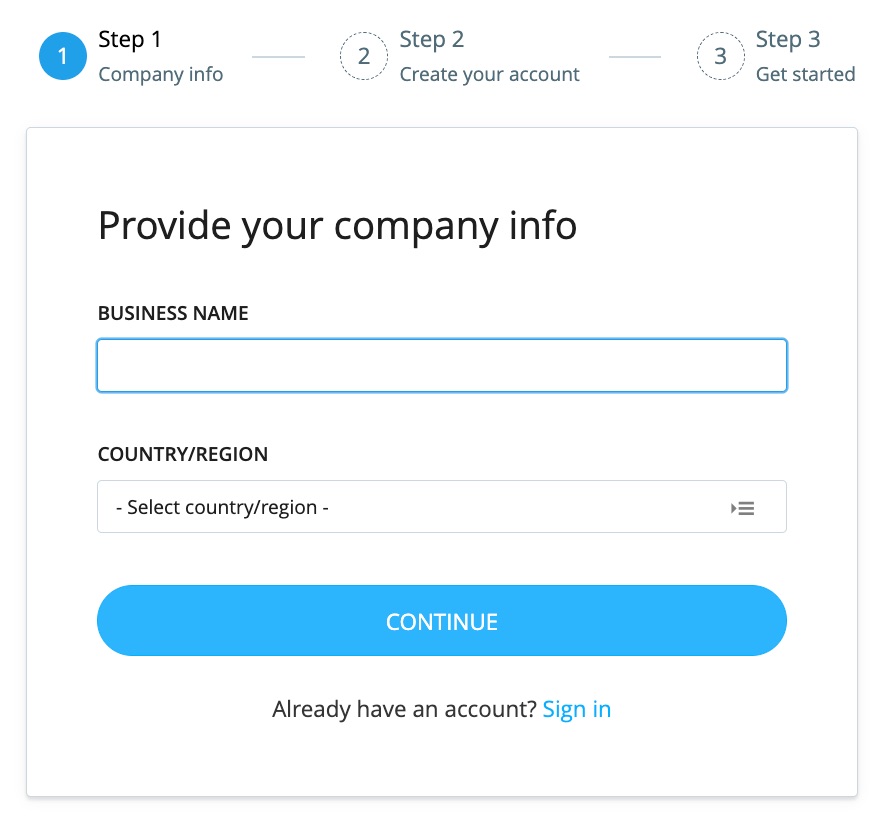
Step 1: Confirm Company Information — Provide the initial company details:
-
Business name
-
Country or region of tax registration
-
Company size and industry
-
Preferred method for receiving invoice payments
Important:
The country selected during registration cannot be changed later. Please verify this information carefully before proceeding, as correcting it afterward requires extensive support intervention.
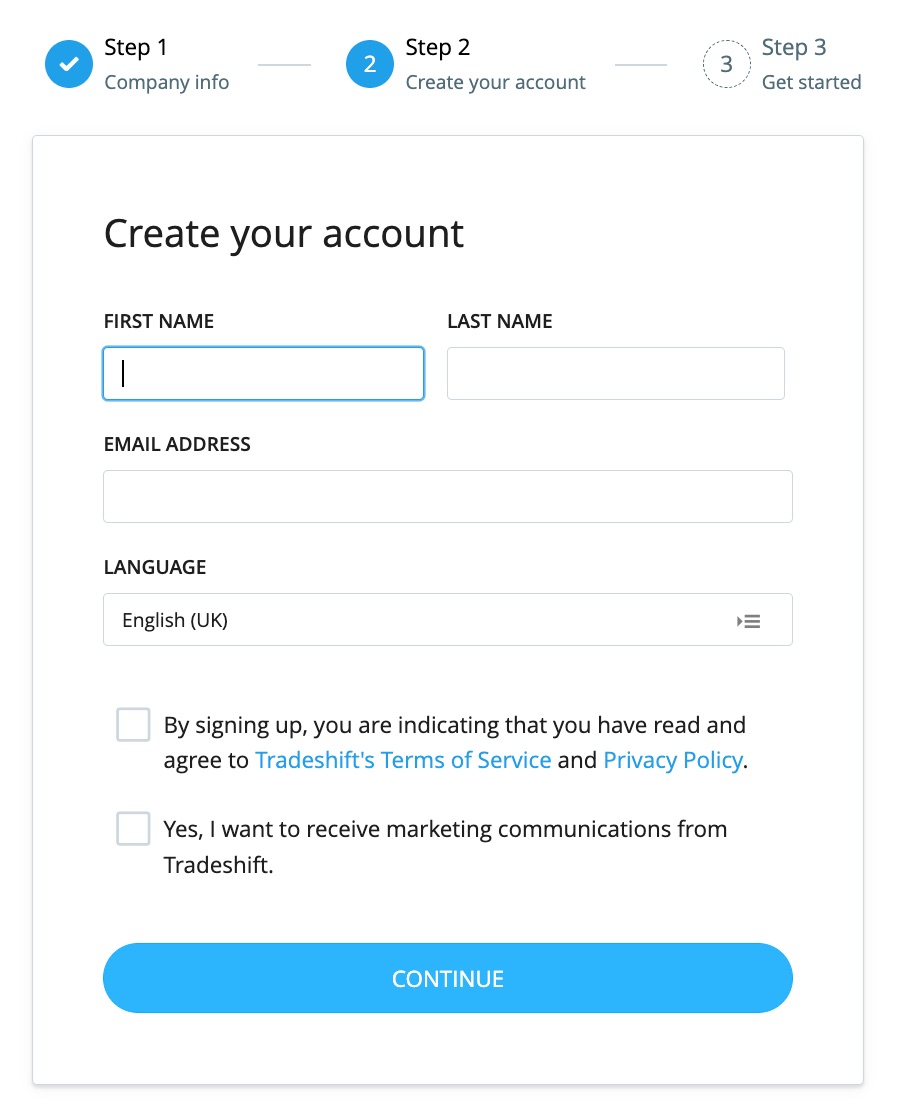
Step 2: Create your account — Enter your personal details:
-
Full name
-
Email address
-
Preferred language
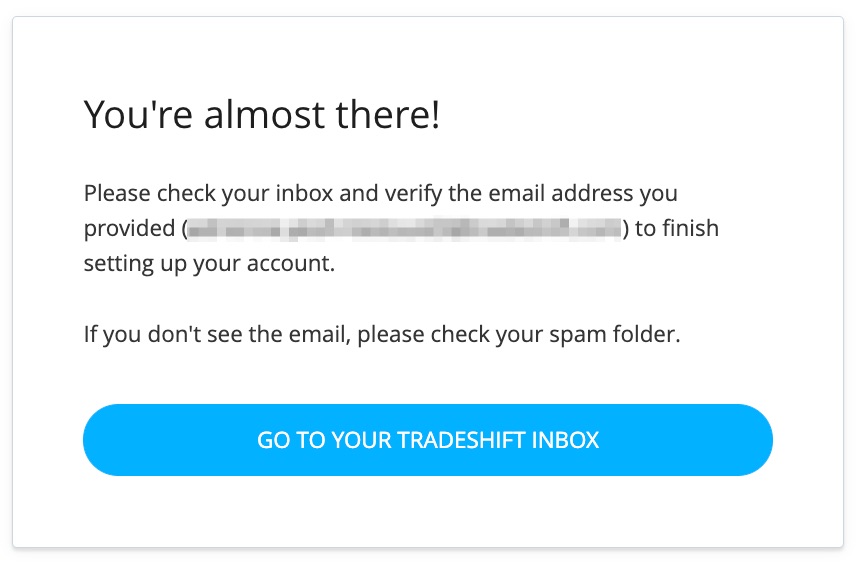
Step 3: Start using Tradeshift
-
Check your inbox for a verification email.
-
Click the provided link to confirm your email address and proceed with the account setup.
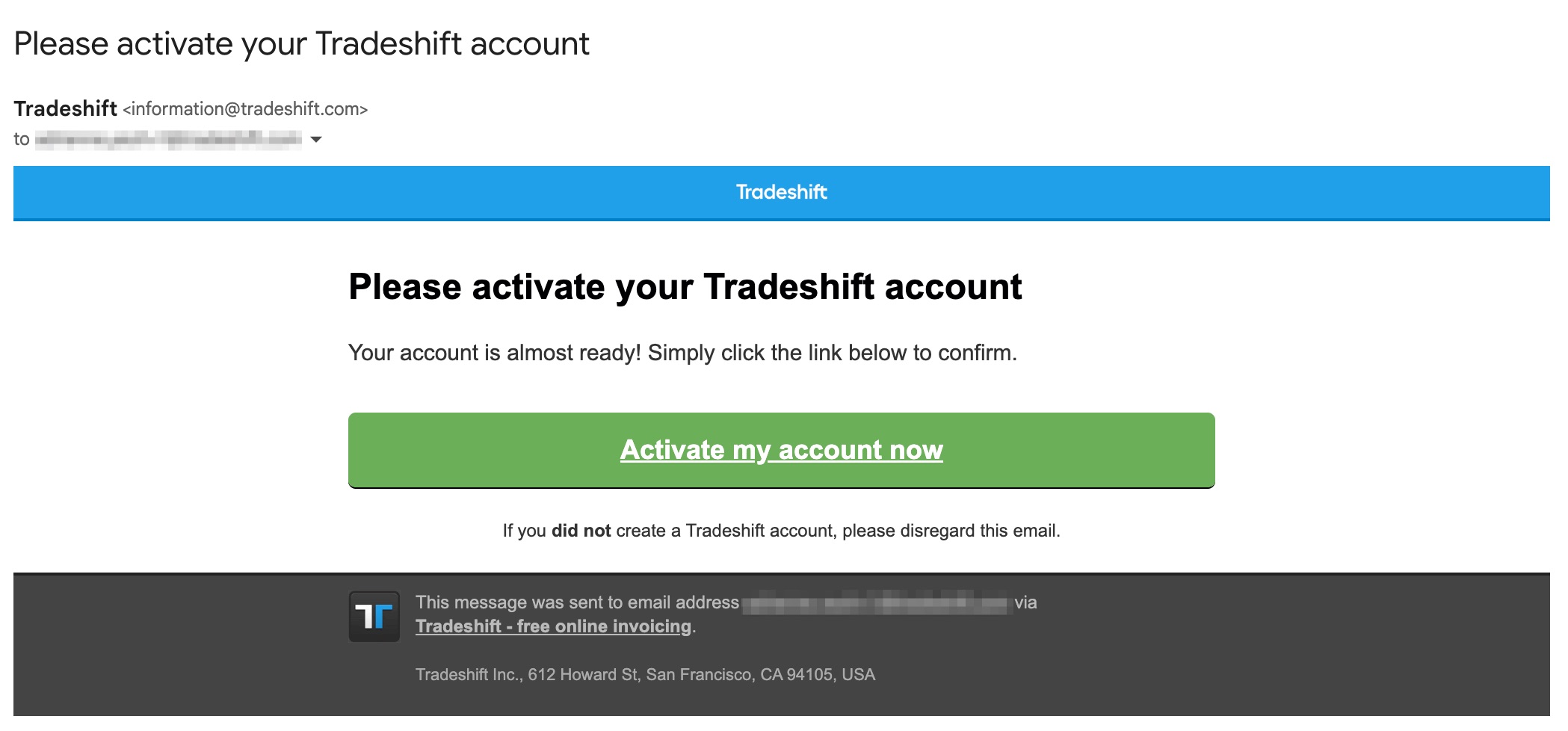
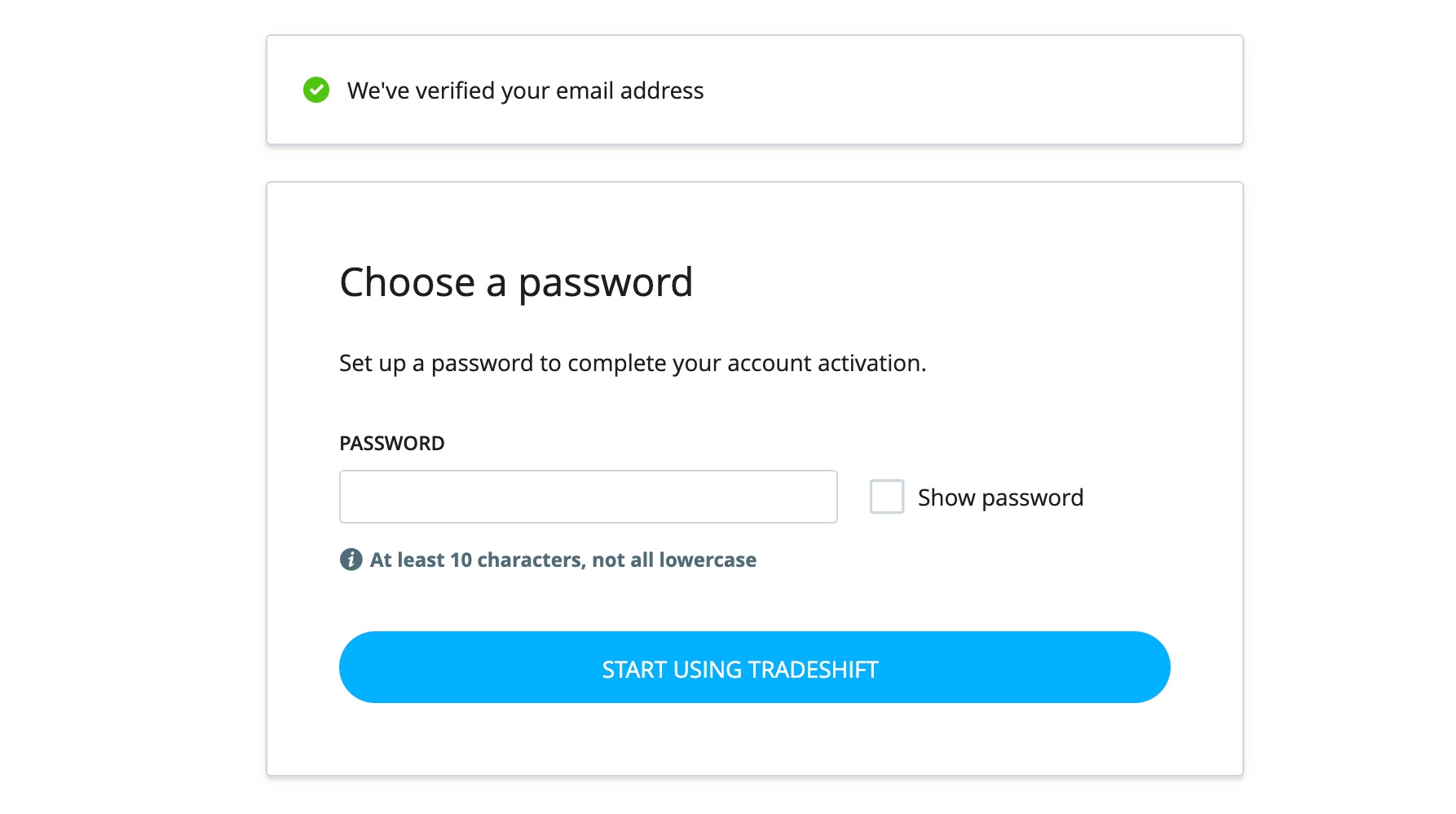
Step 4: Set a Secure Password — Following email verification, you will be prompted to create a password to finalize your account activation
Password Requirements:
-
Must be at least 10 characters long
-
Cannot consist of all lowercase letters
You may use the "Show password" checkbox to view your input. Once your password is set, click the "Start Using Tradeshift" button to complete the setup process.
After this step, you'll be logged into the Tradeshift platform automatically.
Step 5: Complete Your Company Profile — Upon logging in, you will be directed to the Company Profile page.
Please complete your profile by providing the required information in all mandatory fields, such as
-
Company Name
-
Company Address (Full)
-
Company Identifiers
-
Company ID / Business Registration Number
-
Tax ID / VAT ID (if applicable)
-
Important:
Your Tax or VAT ID must be accurate and unique. If the ID is already associated with another account, please contact support to determine whether the accounts should be merged or updated accordingly.
- Ensure the Company Identifiers section is completed and up to date.
- If these fields are missing or incorrect, your invoices will not be submitted successfully.
- If you do not have a VAT number, please refer to this article for guidance on how to set your account to VAT-exempt.
You will also see a Profile Strength indicator. Aim for 100% completion to ensure your setup is fully optimized.
Once all mandatory fields are completed, your account will be fully enabled for invoicing and engaging with partners on Tradeshift.
App Activation (Quyntess Applications)
After completing your Tradeshift account setup and company profile, the next step is to activate the Quyntess Applications.
Follow the steps below to activate the required Quyntess applications:
Activation can be done by either clicking the links below or copying the provided links into your browser and pressing Enter:

Freight Rate Collaboration App ;- Used for Creating and Managing Rate Cards.
https://go.tradeshift.com/#/Tradeshift.AppStore/apps/Quyntess.freightRateCollaboration001

Logistics Collaboration App - Used for Managing and adding Charges to jobs/editing Purchase Orders.
https://go.tradeshift.com/#/Tradeshift.AppStore/apps/Quyntess.carrierCollaboration001
Step 1: For each app, click Activate.
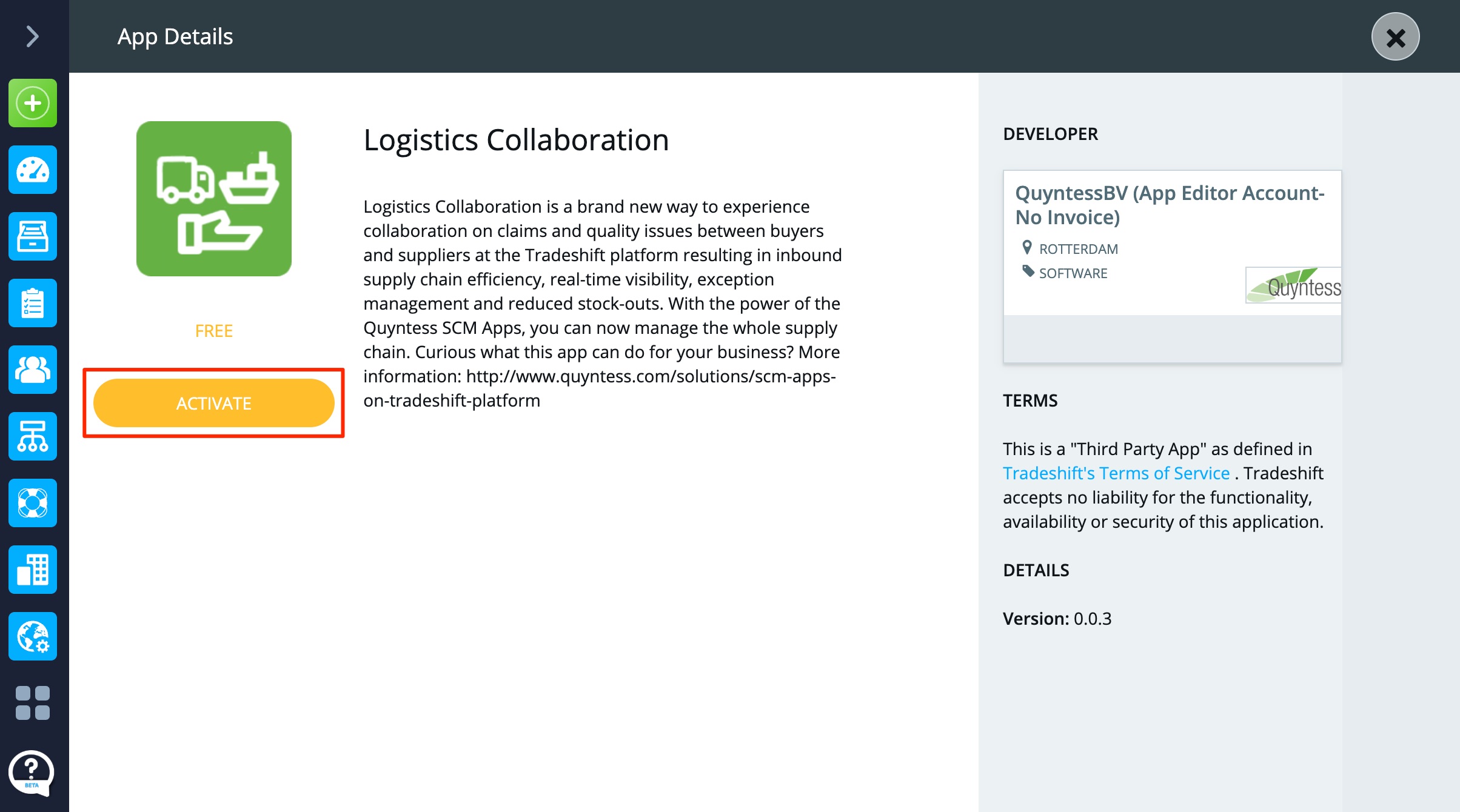
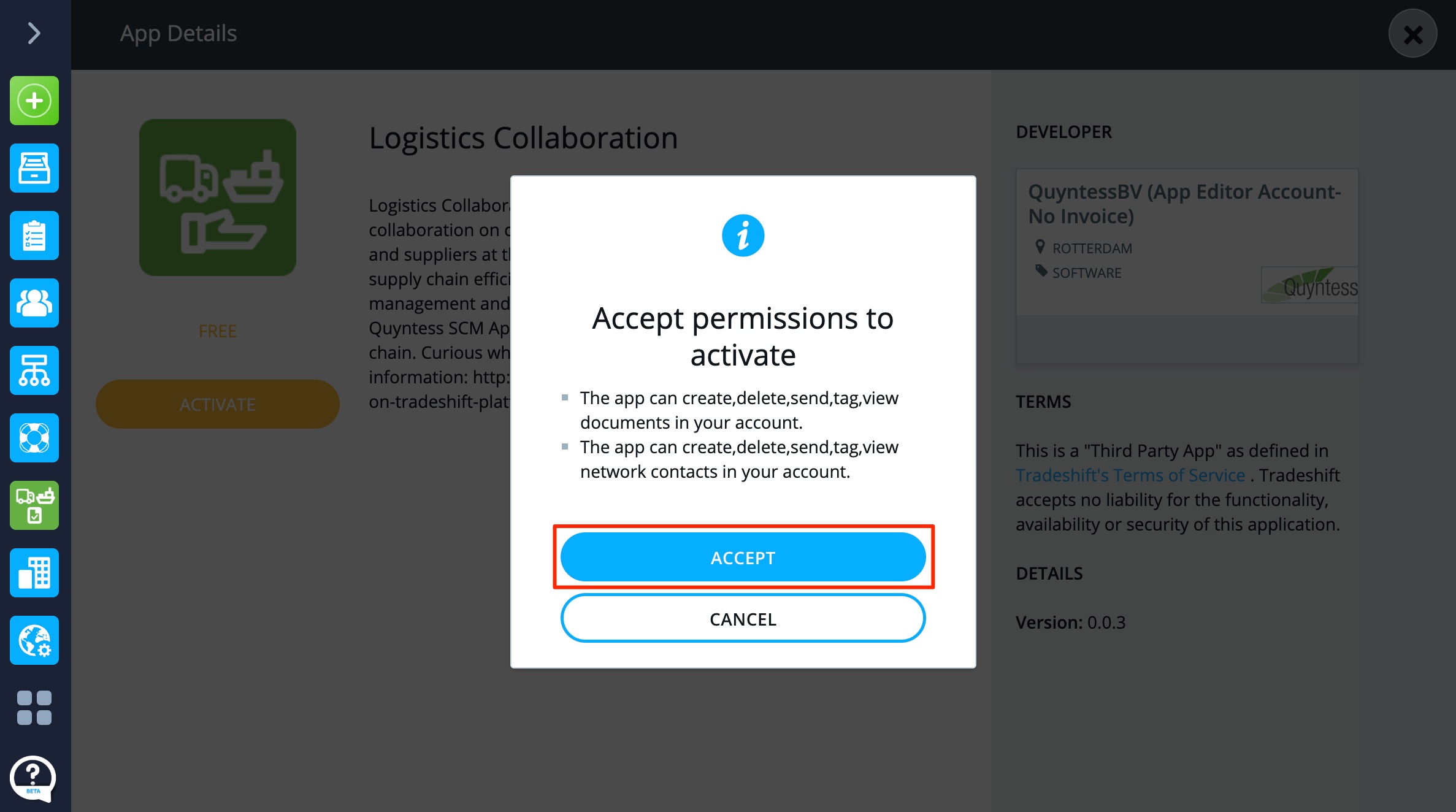
Step 2: When prompted, click Yes and then Accept to confirm the activation.
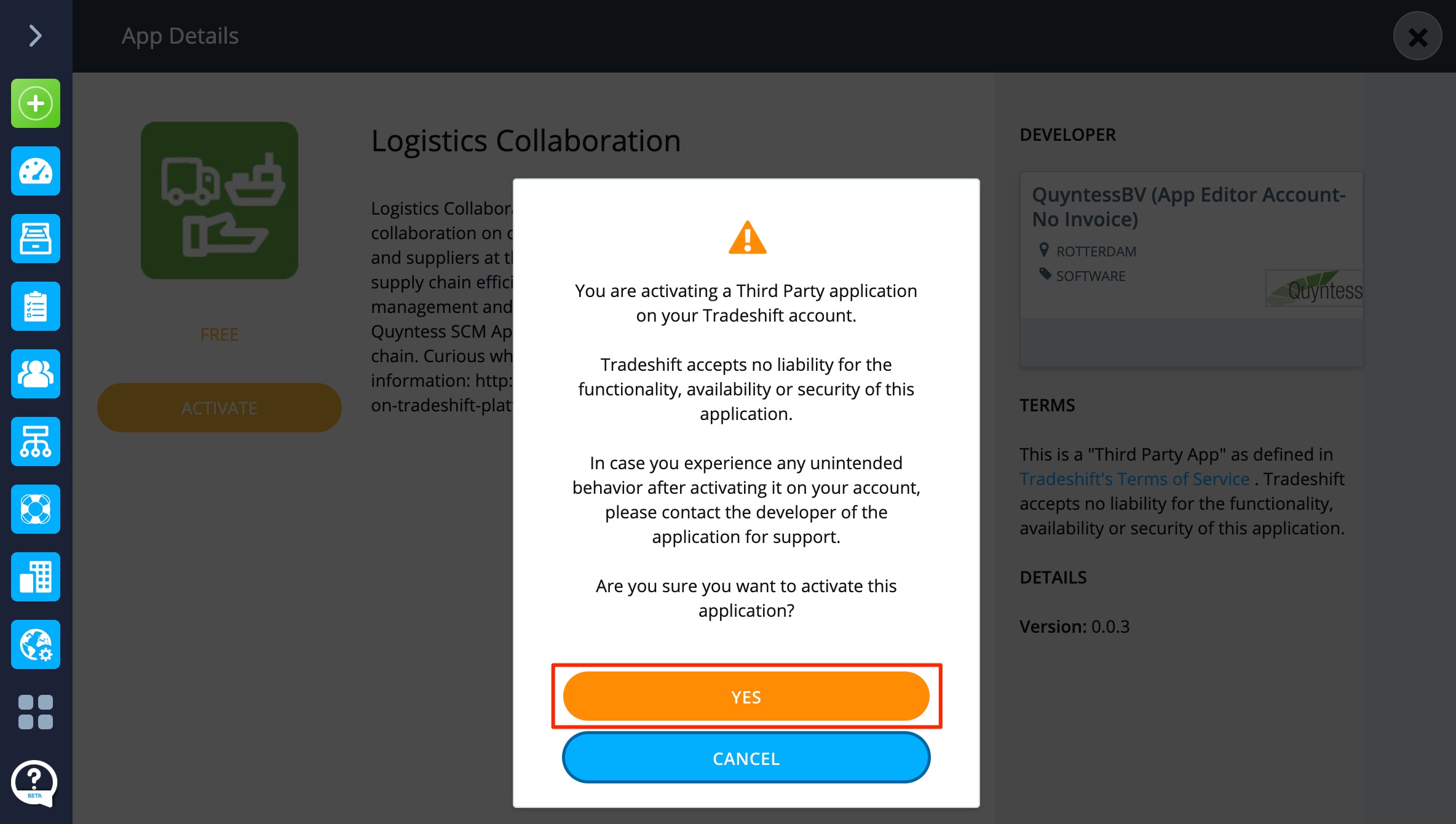
Step 3: Review the app details and permissions. These permissions allow the app to create, send, and view documents and network contacts within your account.
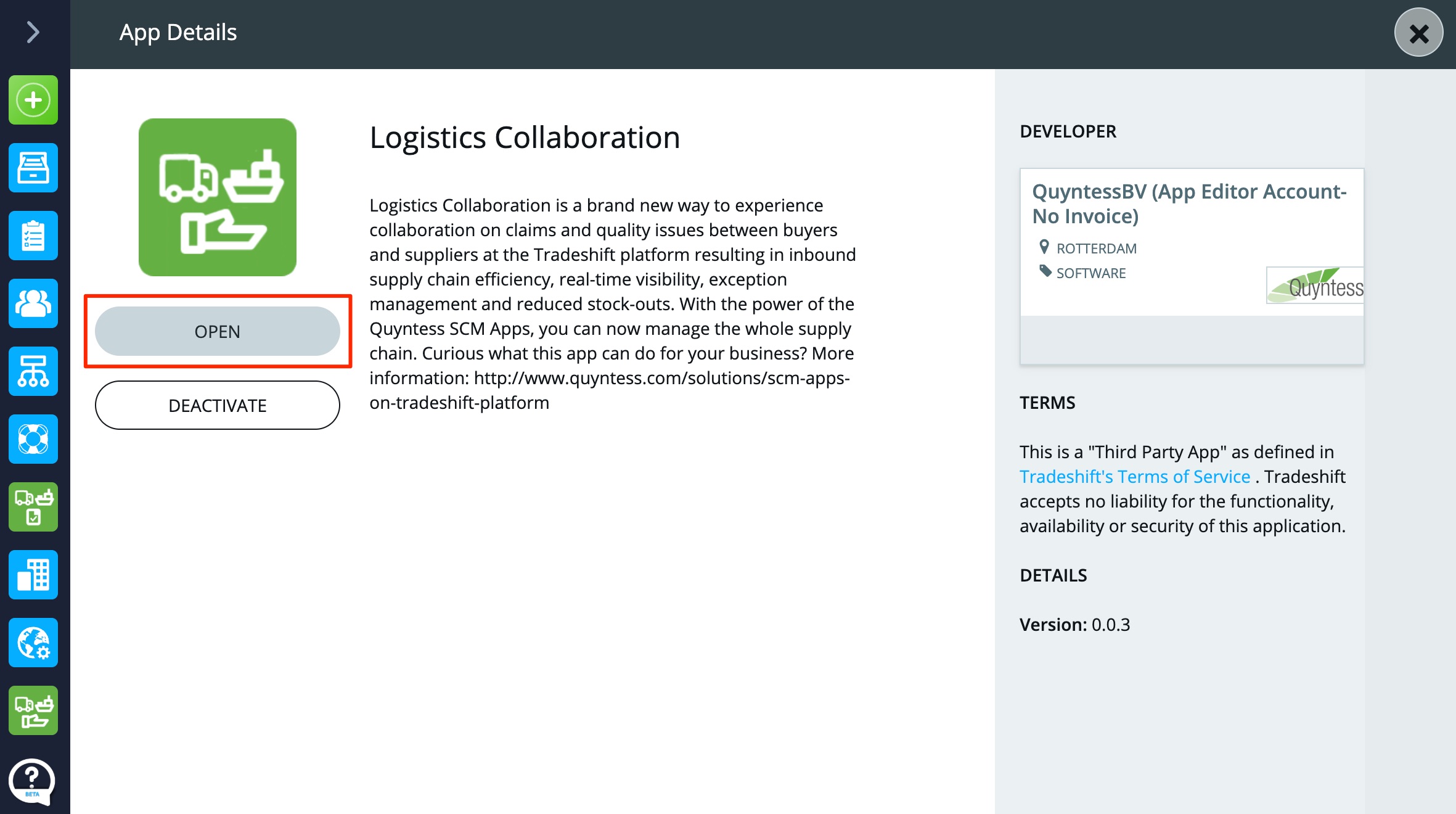
Step 4: Once activation is complete, click Open or select the app icon from your dashboard to launch it.
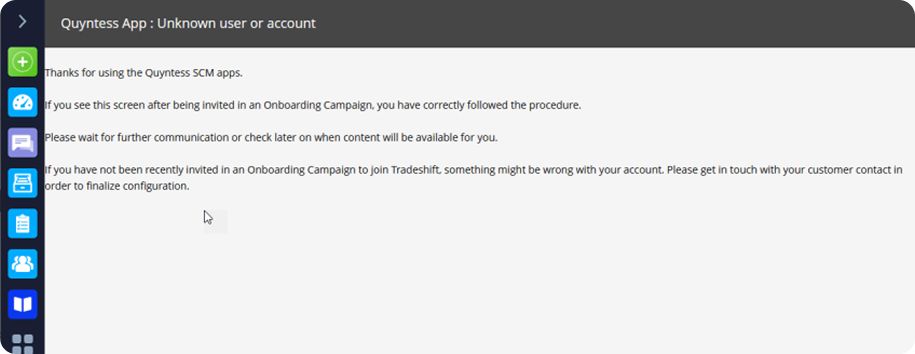
Step 5: Upon launching, you will see a confirmation message indicating successful activation.
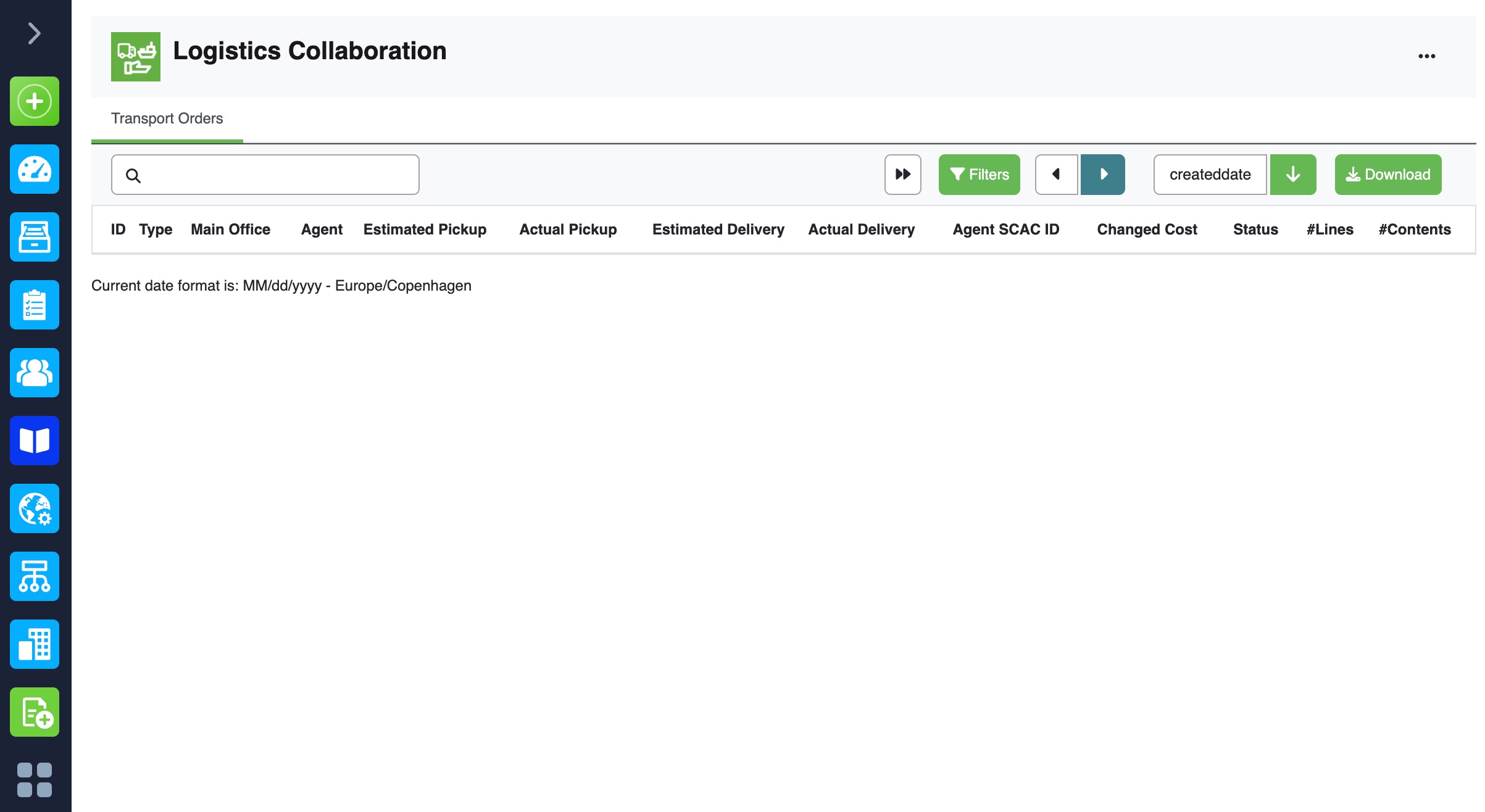
Step 6: Once your account is finalized by Quyntess, your dashboard will display available documents, including Freight Rate Cards and Transport Orders.
You can find these apps in “All Apps” (bottom left)
MOST FREQUENTLY ASKED QUESTIONS
This guide is designed to assist you in completing your Tradeshift account activation seamlessly. It also outlines common issues, frequently asked questions, and helpful tips provided by the support team.
Account Activation Process
Support: If you require assistance or have questions regarding the activation process, please visit the Agent Onboarding page for more information or submit a support request to Tradeshift Support.
My Activation link isn't working?
If your activation link fails to open or has expired, please contact Tradeshift IT support to request a new link.
Important:
Once you click the activation link, you must complete the entire registration process in a single session. Closing the browser window or pausing midway may result in technical issues.
What should I do if I haven't received my activation email?
- Check your spam or junk folder.
- Ensure that emails from the tradeshift.com domain are not being blocked by your organization's email filters.
- If you are still unable to locate the activation email, please contact Tradeshift IT support for further assistance.
What happens if I begin the registration process but do not complete it?
If you do not complete the full registration after clicking the activation link, you may be unable to resume the process later. In most cases, you will need to restart the registration using the same link.
If the link has expired or is no longer functional, please contact Tradeshift IT support to request a new one.
Has my activation link expired?
The activation link does not expire based on time; however, it can become invalid if you have already started the registration process but not completed it. If this occurs, please contact your Tradeshift IT support to request a new activation link.
Can I change my email address after activating my account?
Its strongly advised not to change your email address after account activation, as the process is technically complex and may affect your account access. Should an update be necessary, you will need to contact Tradeshift IT Support to initiate the request. Please note that additional verification steps may be required to authenticate your identity.
I forgot my password, how to reset it?
- Go to the Tradeshift Login page
- Click "Forgot your password?"
- You'll be redirected to the password reset page
- Enter your registered email address
- Click "Send Instructions"
- Check your email inbox for a reset link from Tradeshift
- Click the link and set a new password
Tip: If you do not receive the password reset email, please check your spam or junk folder. If the email is still not found, submit a support ticket for further assistance.
Account Registration: Best Practices and Common Pitfalls
Am I permitted to create a Tradeshift account independently?
Users are advised not to create a Tradeshift account manually. Always use the activation link provided by World Courier to ensure proper configuration. Manually creating an account may bypass essential system settings and result in delays in document submission.
What should I do if I select the incorrect country during registration? Can the country be changed later?
Please note that the country selected during registration cannot be changed once the process is completed. Selecting an incorrect country may lead to account configuration issues that are complex and time-consuming to resolve. It is therefore critical to verify and select the correct country before submitting the registration form. If you have already submitted the form with an incorrect country selection, please raise a support ticket and contact IT support team for further assistance.
Why is providing a valid VAT/Tax ID essential?
The VAT/Tax ID serves as a unique identifier for your organization within the Tradeshift platform. If the ID is already associated with another account, you will need to contact support to either merge the accounts or proceed with setting up a new one. If you do not have a VAT/Tax ID, please follow the steps outlined in the related article.
Duplicate Account Detection and Access-Related Issues
What does it indicate if my VAT ID or email address is already associated with another account?
This typically occurs when your organization has already been onboarded under a different account, often managed by another team or department. In such cases, please contact support to determine the appropriate course of action—whether to merge the accounts or proceed with setting up a separate account.
How should I proceed if a duplicate account warning appears during registration?
Support will assist in determining the appropriate course of action, which may include:
- Merging your account with the existing one
- Proceeding with the creation of a separate account
What should I do if I already have a Tradeshift account?
Please go into your Network app and confirm the connection. WORLD COURIER - How to accept a connection request